An IPTV Smarters setup uses a compatible Smarters-style player to organize authorized live television and on-demand playlist data. The app is a player and does not include channels by itself. Canadian viewers should verify the publisher, platform and login format before entering subscription details.
Quick answer
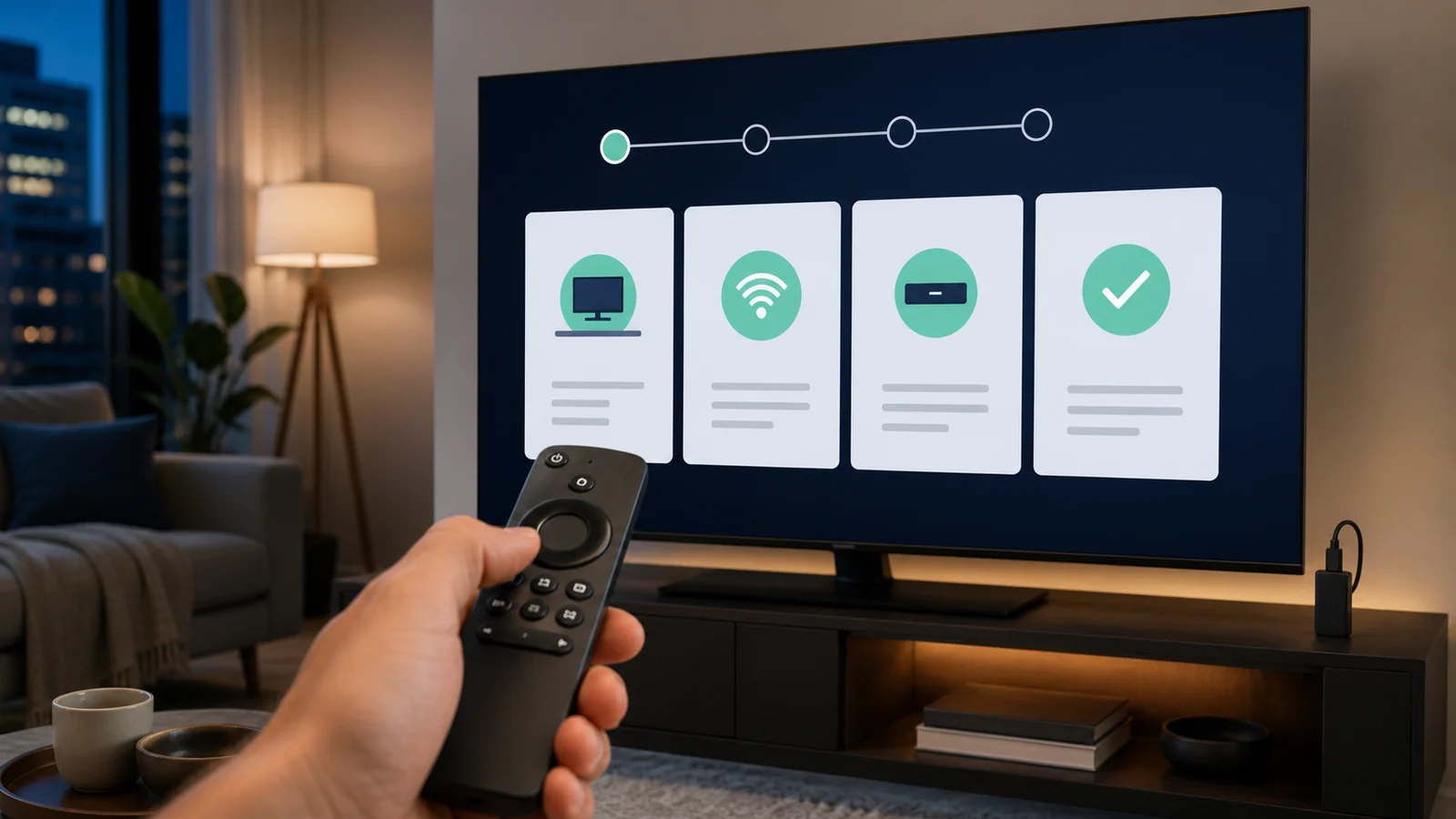
For IPTV Smarters setup, install the player from the official platform store or verified publisher, accept its terms, choose Xtream Codes or M3U, enter the supplied details and allow the first data load to complete. Never buy a channel package merely because it appears inside a player advertisement.
Prepare for IPTV Smarters setup
Have the device, player listing and welcome email ready. Confirm whether the subscription provides Xtream Codes fields or a complete M3U URL. Check free storage and device time before starting.
Use an official app store when available and avoid modified APKs. The Smarters name appears on several products, so verify the developer and privacy information for the exact app.
Install the Smarters player
Search the television or device app store for the selected player. On Android TV or Google TV, use Google Play. On Apple TV, use the tvOS App Store. Samsung and LG availability depends on the model and regional store.
Open the installed player and review its disclosures. The player should explain that it does not supply playlists or content.
Use Xtream Codes for IPTV Smarters setup
Choose Login with Xtream Codes API or the equivalent option. Enter any playlist name, then the username, password and server URL supplied with the subscription.
Wait for live television, series, films and EPG data to load. If the screen stays empty, confirm the server address includes the correct protocol and no spaces.
Use an M3U URL in Smarters
Choose Load Your Playlist or File/URL and paste the entire M3U address. Some versions request a separate guide URL, while others detect guide data from the playlist information.
Because credentials can be embedded in the M3U address, do not share the link. Use a room name rather than account details for the playlist label.
Organize IPTV Smarters for a household
Create favourites, confirm parental settings and disable categories the household does not need. Test each supported screen separately before enabling simultaneous playback.
If a player offers an external video player option, keep the default first. Change it only when a specific stream format requires another decoder.
Fix IPTV Smarters setup problems
For invalid details, remove the saved user and enter the credentials again. For empty EPG, refresh guide data and verify the device time zone. For an app crash, update the player and restart the device.
When playback buffers, compare channels, test the device connection and follow our ten-step buffering guide before installing several replacement apps.
Practical checklist
- Verify the player publisher.
- Use only authorized playlist details.
- Choose the correct login format.
- Protect embedded M3U credentials.
- Test parental settings before family use.
Frequently asked questions
Does IPTV Smarters include channels?
No. A Smarters player organizes playlists supplied by a separate authorized content service.
Which login is easier in IPTV Smarters?
Xtream Codes is often easier with a remote because the server, username and password are entered in separate fields.
Why is IPTV Smarters showing no EPG?
Refresh guide data, confirm the device time and ask whether a separate XMLTV URL is required.
Can I use IPTV Smarters on a Smart TV?
A compatible version may be available depending on the television platform, model year and regional app store.
Ready for the next step?
Test the IPTV Smarters setup on one supported device and confirm the playlist, EPG and network before adding more screens.
nn
n