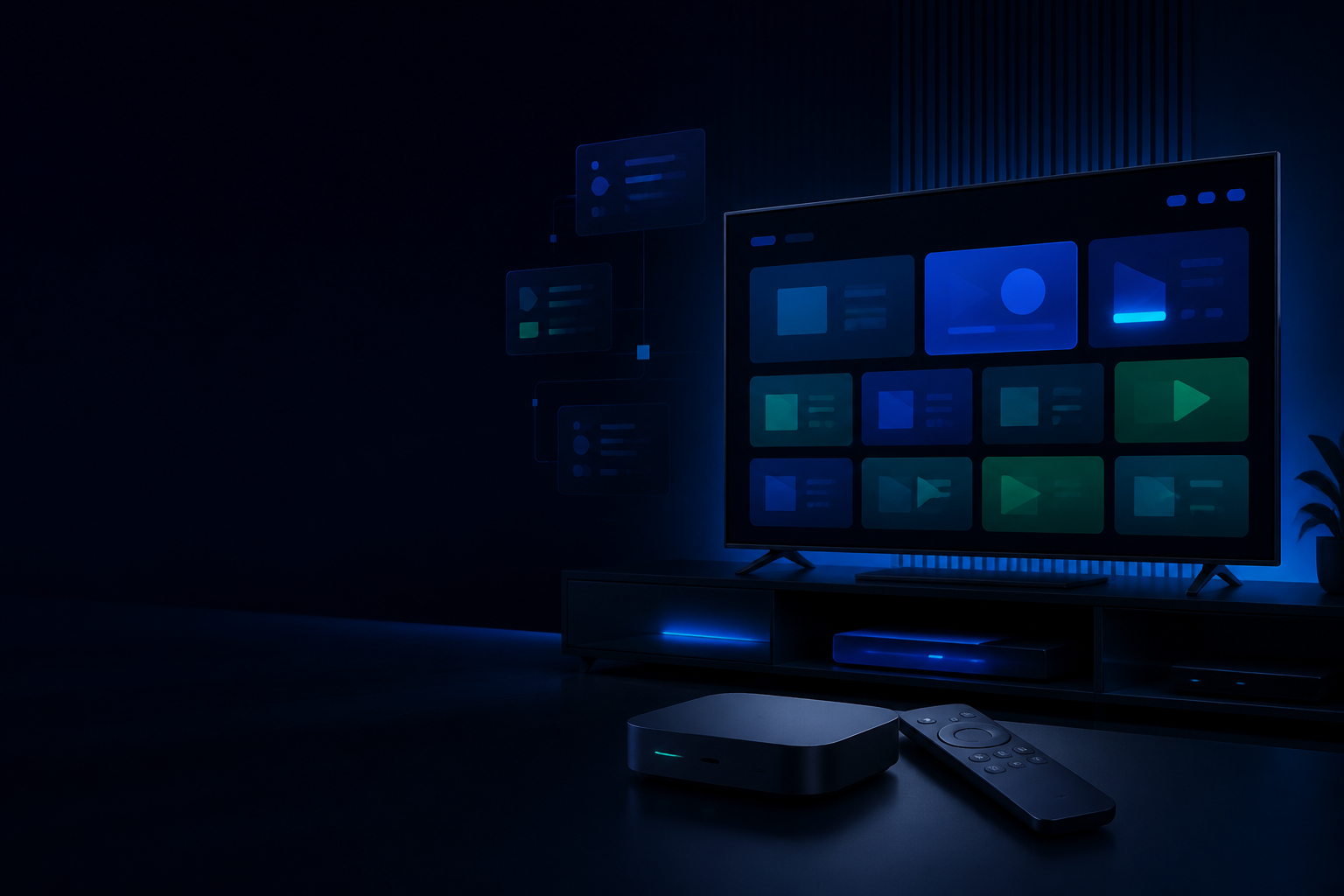
A TiviMate setup connects a compatible Android-based television device to an IPTV subscription using M3U or Xtream Codes credentials. TiviMate is a player rather than a channel provider, so installation and player licensing remain separate from the subscription that supplies the playlist.
Quick answer
For a TiviMate setup, install the official player on Android TV or Google TV, choose Xtream Codes or M3U, enter the supplied credentials, wait for playlist and EPG imports, then organize favourites. Fire TV installation paths can change, so use the current official source and never download a modified APK from an unknown page.
Understand the TiviMate setup requirements
Prepare a supported Android TV, Google TV or Fire TV device, the IPTV server address, username and password or M3U URL, and a stable network connection. TiviMate is designed for television-style Android devices rather than ordinary iPhone or Apple TV installation.
A TiviMate Premium purchase unlocks player features but does not include television content. Keep player account details separate from IPTV subscription credentials.
Install TiviMate from a trusted source
On Android TV or Google TV, search Google Play for TiviMate and verify the publisher. On Fire TV, follow a current, trusted installation path because Appstore availability and sideloading menus can change.
Avoid preconfigured or modified versions. They can expose credentials, introduce unwanted software or prevent updates.
Add Xtream Codes in TiviMate setup
Choose Add playlist, select Xtream Codes login and enter the server address, username and password exactly. Use the complete server address supplied in the welcome message.
Give the playlist a simple private name and wait until categories load. If authentication fails, remove it and enter the values again rather than repeatedly changing unrelated playback settings.
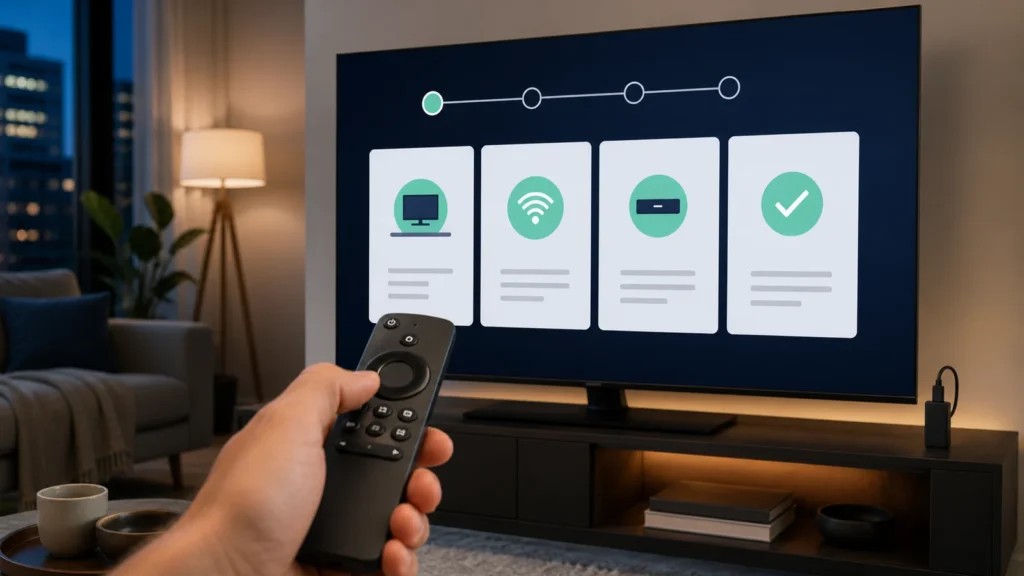
Add an M3U playlist to TiviMate
Choose M3U playlist when you receive one complete playlist URL. Paste the full address and add the XMLTV or EPG URL only when it is supplied separately.
M3U addresses often contain credentials. Treat the entire URL as a password and never post it publicly.
Configure EPG, favourites and groups
Refresh EPG after the playlist finishes importing. Confirm the device time zone before changing guide offsets. Build a compact favourites list and hide groups the household does not use.
Back up the TiviMate setup after organizing a large playlist. A backup can save time after reinstalling the player on the same supported device environment.
Troubleshoot TiviMate setup errors
When the playlist works in another player but not TiviMate, compare the login format, update the app and test again after a full restart. If no playlists work, test the device network and date.
For guide errors, refresh playlist and EPG separately, then use the IPTV EPG troubleshooting checklist. For freezing, compare hardware and software decoding only after Ethernet, Wi-Fi and background traffic have been checked.
Practical checklist
- Use the official player build.
- Keep player licensing separate from subscription credentials.
- Start with Xtream Codes when supplied.
- Refresh playlist and EPG separately.
- Create a backup after organizing favourites.
Frequently asked questions
Does TiviMate include IPTV channels?
No. TiviMate is a player. You must add a playlist or credentials from a service you are authorized to use.
Is TiviMate available on Apple TV?
TiviMate is built for Android-based television devices. Apple TV requires a compatible tvOS player.
Why does TiviMate say the playlist is invalid?
Check the server URL, username, password and login type. Remove spaces and confirm the subscription is active.
Can I back up TiviMate settings?
Supported versions include backup and restore options. Store backups securely because they may contain playlist configuration.
Ready for the next step?
Complete the TiviMate setup on one television first, then confirm connection limits before adding more household screens.
nn
n