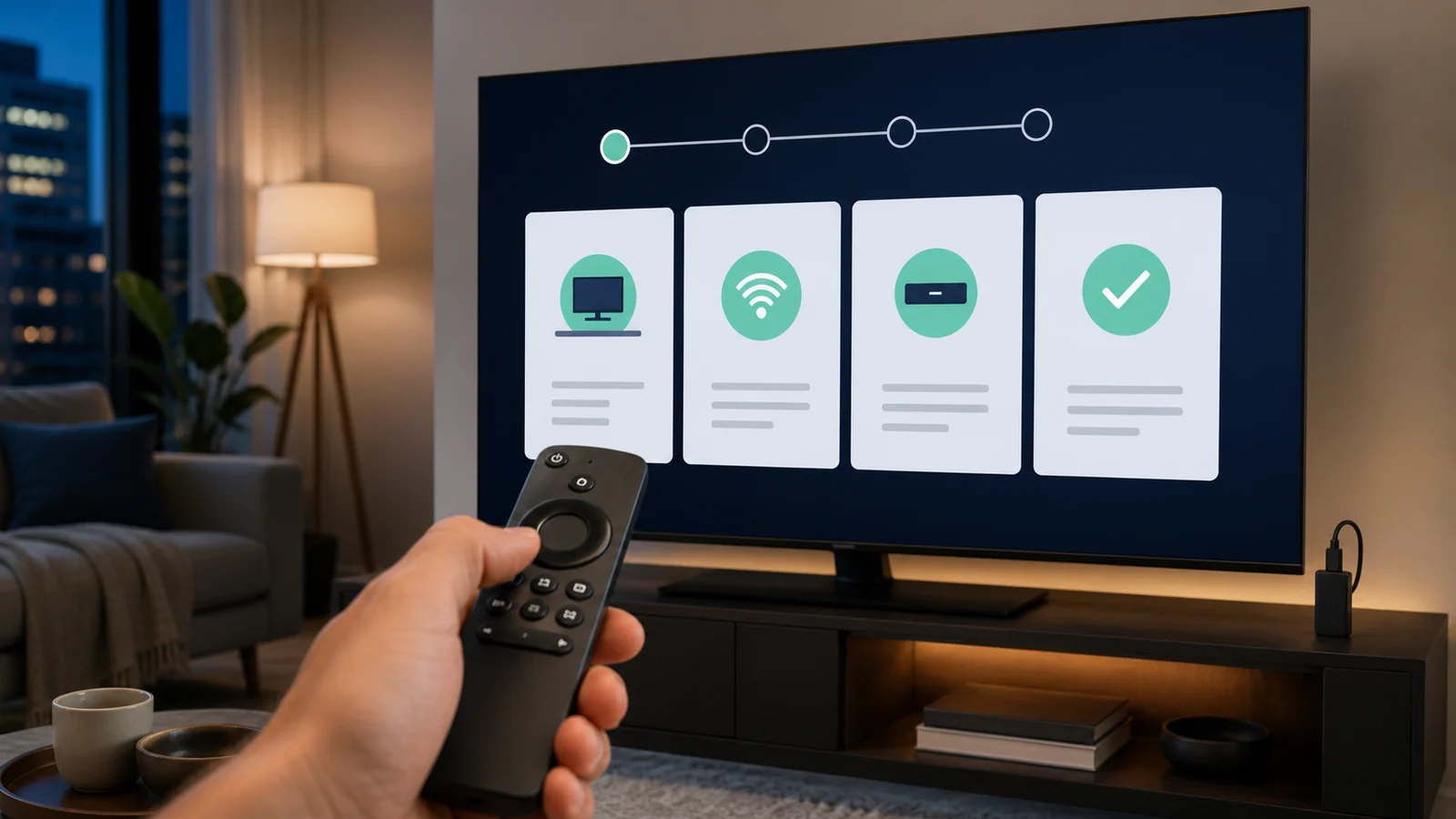
You can install IPTV on Firestick by adding the Downloader app, allowing it to install a trusted player and entering the subscription details from your welcome message. The process usually takes about five to ten minutes.
Before you begin
- Your Fire TV Stick or Fire TV Cube connected to the internet
- The IPTV server URL, username and password from your welcome message
- About 200 MB of free device storage
- The Downloader code for V12Mate: 2494311
Important: IPTVIY provides the subscription. V12Mate is a free compatible player on Android and Fire TV, and you may use another compatible IPTV player if you prefer.
How to install IPTV on Firestick
Step 1: Install the Downloader app
- From the Fire TV home screen, open My Apps.
- Select Get More Apps.
- Choose Search and type Downloader.
- Select the orange Downloader app from the results.
- Choose Download and wait for installation to finish.
- Press Back and return to the Fire TV home screen. You will open Downloader after permissions are enabled.
Step 2: Reveal Developer Options
Recent Fire TV versions may hide Developer Options until the device name is selected several times.
- Open Settings → My Fire TV.
- Select About.
- Highlight the name of your Fire TV device.
- Press the centre Select button seven times.
- A message should confirm that developer options are enabled.
- Press Back once to return to the My Fire TV menu.
Step 3: Allow Downloader to install apps
- Open Developer Options.
- Select Install Unknown Apps.
- Find Downloader and set its permission to On.
- If your model shows Apps from Unknown Sources instead, enable that setting and continue.
Only install software from a source you trust. You can turn this permission off again after installation.
Step 4: Install V12Mate with code 2494311
- Open Downloader.
- Select Allow if Fire TV asks for file access.
- Dismiss the welcome message.
- Enter Downloader code 2494311 and select GO.
- Review and accept the player privacy policy.
- When the installation screen appears, select Install.
- After installation, choose Open.
Step 5: Add your IPTV subscription
Open V12Mate and choose Add Playlist. Enter the server URL, username and password exactly as they appear in your IPTVIY welcome message. Capital letters, punctuation and every character must match.
- Give the playlist a simple name such as “Living Room.”
- Enter the complete server URL, including the beginning of the address.
- Enter the username without a space before or after it.
- Enter the password carefully.
- Save the playlist and wait for categories and guide information to load.
- Open a channel to confirm playback.
Keep your login details private
Your server URL, username and password are for your subscription. Do not publish them in screenshots, comments or public forums. Share order information only through the official IPTVIY support channels.
What to do after installation
- Move the player: add it to your main app row so it is easy to find.
- Remove the installer file: Downloader may offer to delete the downloaded package and recover storage.
- Disable unknown app installation: return to Fire TV settings and turn the Downloader permission off if you no longer need it.
- Refresh the guide: allow the electronic program guide to finish loading before changing settings repeatedly.
- Restart periodically: a full Fire TV restart can clear memory and keep navigation responsive.
Firestick IPTV troubleshooting
Downloader code does not open
Confirm the Fire TV has internet access, re-enter 2494311 and make sure Downloader has permission to access files. If the destination is temporarily unavailable, wait a few minutes and try again.
V12Mate will not install
Check free storage, restart the Fire TV and confirm Downloader is permitted under Install Unknown Apps. If TiviMate or a conflicting version is installed, remove it before trying V12Mate again.
Invalid username or password
Delete the playlist and add it again. Copy the values directly from the welcome message when possible. Do not substitute the website address for the server URL supplied with the subscription.
Channels load but keep buffering
Restart the router and Fire TV, test several channels and check speed near the device. A compatible Ethernet adapter can make the connection more consistent. Follow the complete guide to fix IPTV buffering after it is published.
TV guide is empty
Use the player option to refresh playlist and EPG data, then wait a few minutes. Confirm the Fire TV date and time are set automatically.
Frequently asked questions
How long does Firestick IPTV setup take?
Most viewers can complete the process in five to ten minutes when the login details are ready and the connection is stable.
Is the V12Mate player free?
V12Mate is free on Android and Fire TV. IPTVIY supplies the subscription, and you may choose another compatible player.
Can I use a Fire TV Cube?
Yes. The general Downloader and playlist process is similar on current Fire TV Stick and Fire TV Cube devices, although menu names can vary slightly by software version.
Can I turn off Install Unknown Apps afterward?
Yes. After the player is installed, return to Developer Options and disable the Downloader permission until it is needed again.
Need another device?
The complete IPTVIY installation guide also covers Android TV, compatible Smart TVs, Apple devices, Windows, Mac, Formuler and BuzzTV.
Ready to get started?
Compare plans by duration and simultaneous connections, or ask support which setup path fits your Fire TV.